1.
In the Java perspective, click the Create a Scrapbook Page button in the workbench toolbar.
2.
In Enter or select the folder field, type or browse below to select the JUnit project root directory ( JUnit ).
3.
In the File name field, type MyScrap. The JPAGE file extension will be added automatically, if you do not enter it yourself.
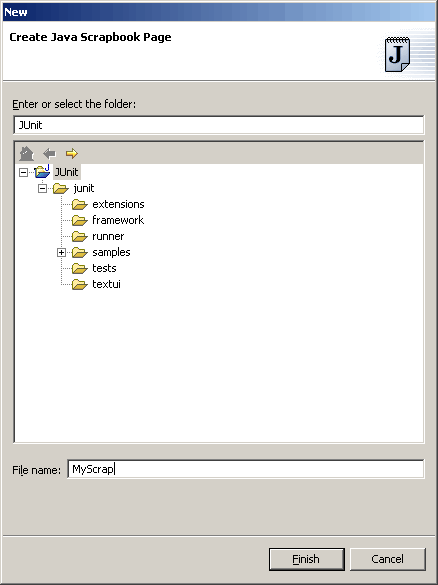
Click Finish when you are done.
4.
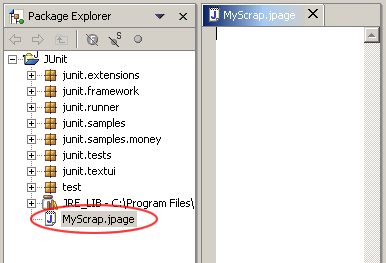
The scrapbook page opens in an editor in the editor area.
5.
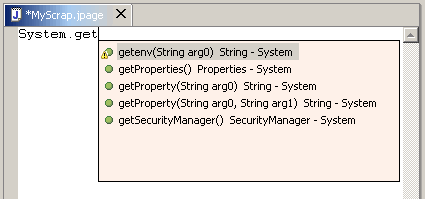
In the editor, type System.get and then use content assist (Ctrl+Space) to complete the snippet as System.getProperties().
6.
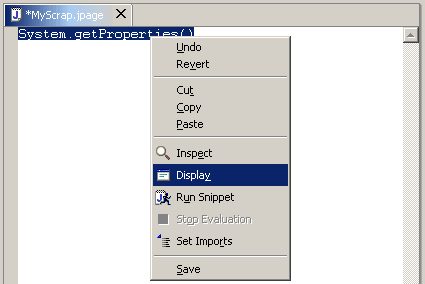
Select the entire line you just typed and select Display from the context menu or select the equivalent item the editor toolbar or Run menu.
7.
When the evaluation completes, the result of the evaluation is highlighted in the scrapbook page.
Note: Snippets can be inspected and run in a similar manner.
8.
Save and close the snippet file by clicking the Close button in the view toolbar and then selecting Yes in the Save dialog.
